Monitoring, Logging, and DevSecOps on Amazon EKS | OpsFlow Part 9
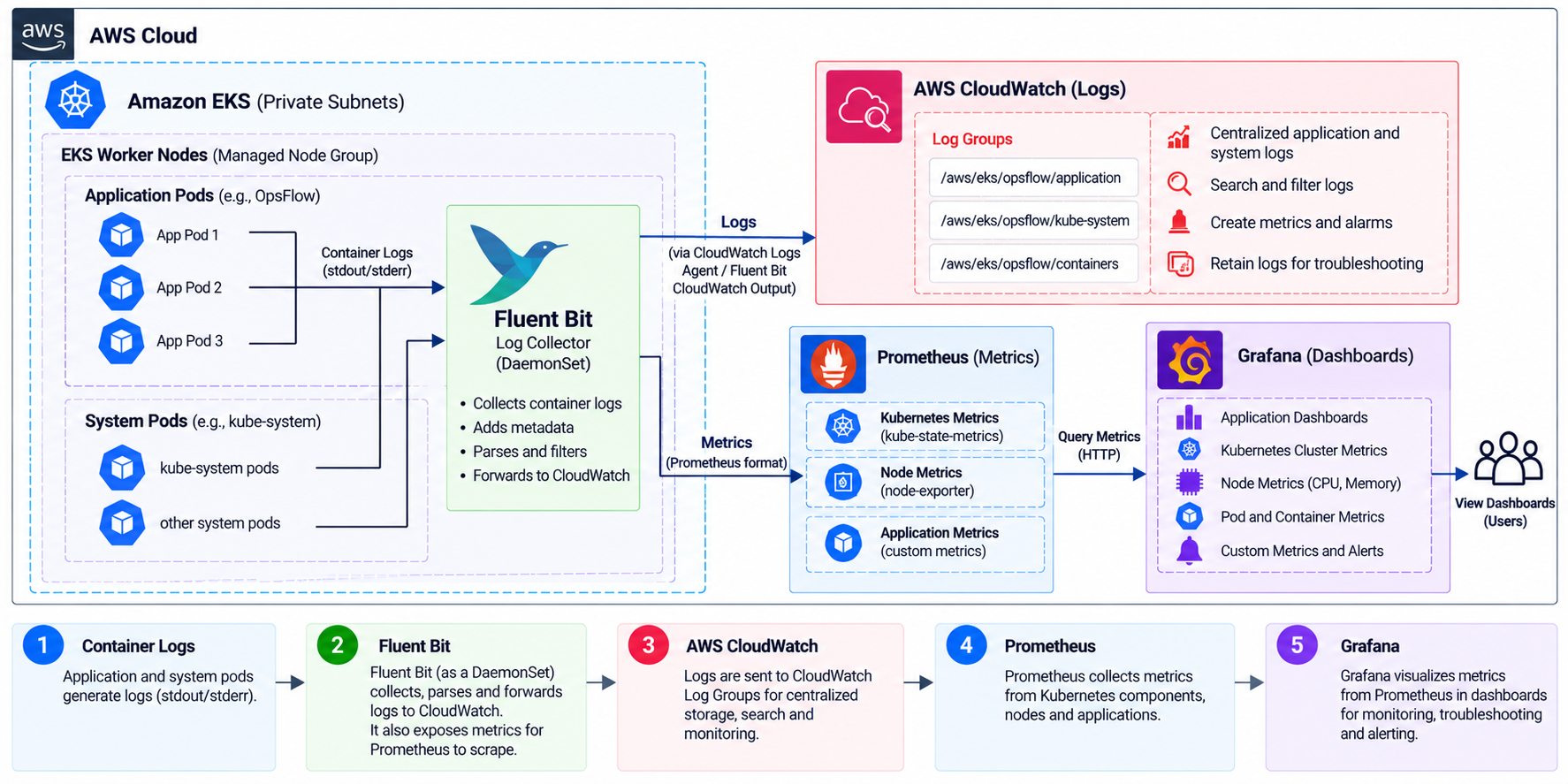
OpsFlow DevOps Series — Part 9: CloudWatch, Fluent Bit, Prometheus, Grafana, and Kubernetes Security
In Part 8 of the OpsFlow series, I built an AWS-native CI/CD pipeline to automate application builds and deployments to Amazon EKS.
The pipeline connected GitHub, AWS CodeBuild, Amazon ECR, and Helm, with security checks and a manual approval stage.
At this point, OpsFlow had an automated deployment workflow.
But deploying an application successfully is only one part of operating a Kubernetes environment.
Once the application is running, we need to understand what is happening inside the cluster.
Are the pods healthy?
Are containers restarting?
Is the application consuming too much CPU or memory?
Are there errors in the application logs?
How do we identify problems before they affect users?
To address these questions, I worked on logging, monitoring, and security for OpsFlow.
In this article, I'll cover how CloudWatch, Fluent Bit, Prometheus, and Grafana fit into the architecture, how I verified the monitoring components, and what I learned about operating Kubernetes workloads.
1. Why Observability Matters
During the earlier stages of OpsFlow, I used commands such as:
kubectl get pods
kubectl describe pod <pod-name>
kubectl logs <pod-name>
These commands are useful when troubleshooting individual workloads.
But they have limitations.
For example, if a pod crashes and is replaced, relying only on the current pod's logs can make historical troubleshooting difficult.
Similarly, kubectl get pods tells me whether a pod is running, but it doesn't provide a complete picture of application performance over time.
This is where observability becomes important.
For OpsFlow, I focused on two main areas:
Logging: Understanding what happened inside the application and Kubernetes workloads.
Metrics: Understanding how the infrastructure and workloads behave over time.
These provide different types of information.
Logs help explain individual events and errors.
Metrics help identify trends, resource usage, and changes in system behavior.
Both are useful for troubleshooting and operating applications.
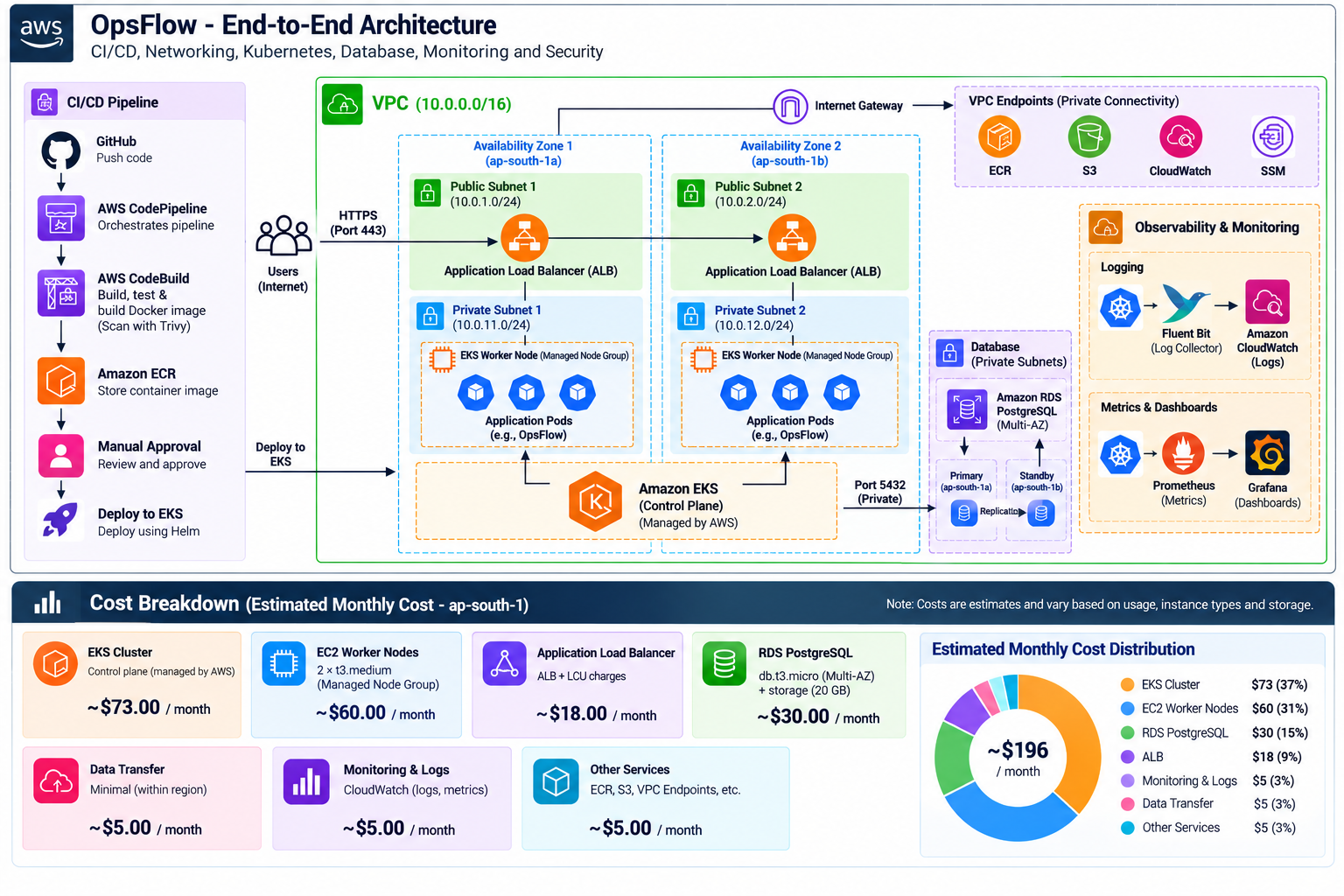
2. Understanding the OpsFlow Observability Architecture
The monitoring and logging setup uses two main workflows.
Logging workflow
Application Containers
          |
          v
    Kubernetes Nodes
          |
          v
       Fluent Bit
          |
          v
   Amazon CloudWatch Logs
Fluent Bit collects container logs from Kubernetes nodes and forwards them to CloudWatch.
CloudWatch provides a centralized location for viewing and searching those logs.
Monitoring workflow
Kubernetes Cluster
         |
         v
   Metrics Endpoints
         |
         v
     Prometheus
         |
         v
       Grafana
         |
         v
  Monitoring Dashboards
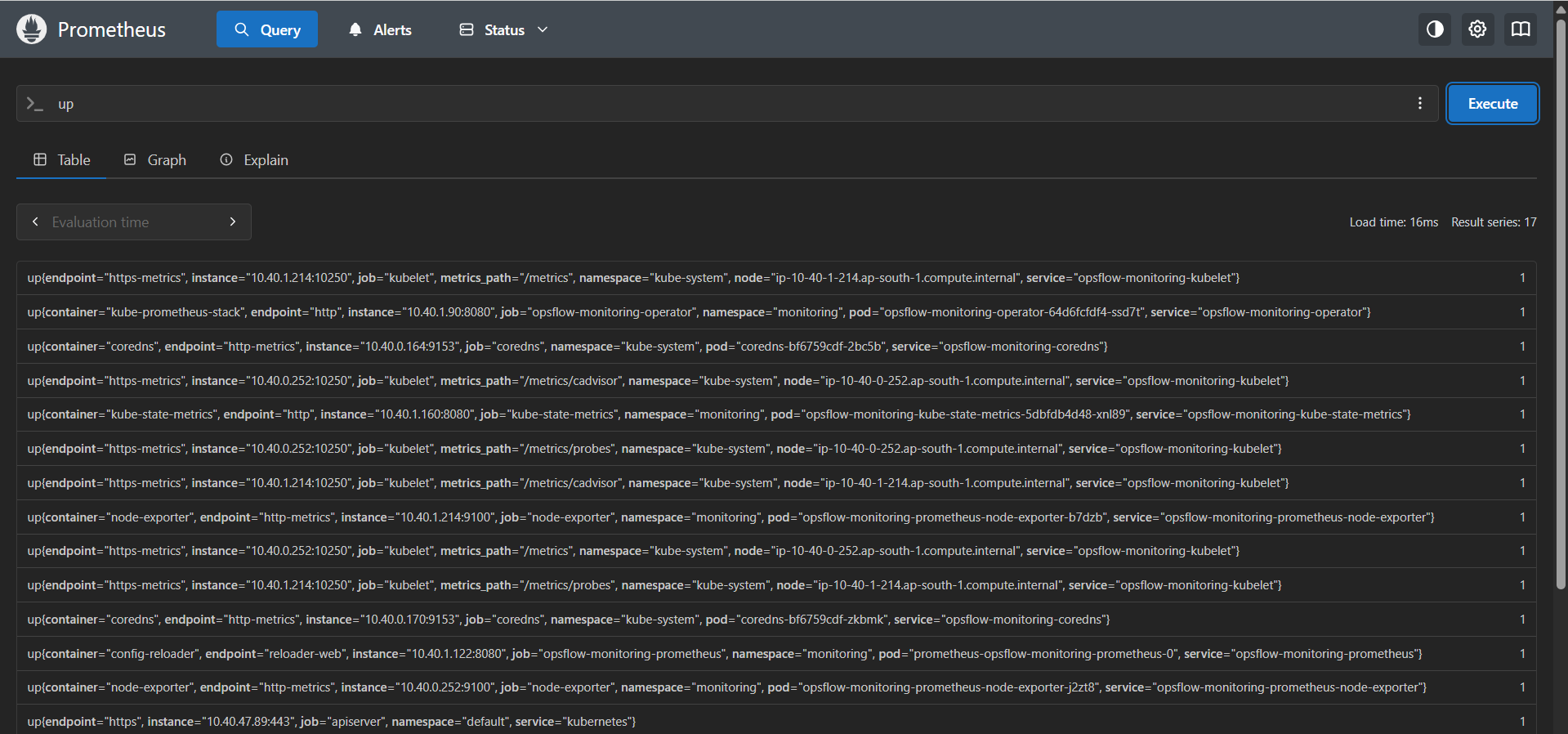
Prometheus collects metrics from configured targets.
Grafana uses those metrics to create dashboards and visualizations.
Together, these components provide better visibility into the application and Kubernetes environment.
3. Centralized Logging with Fluent Bit
Kubernetes containers normally write application logs to standard output and standard error.
These logs are available through commands such as:
kubectl logs <pod-name>
However, Kubernetes itself doesn't provide a complete centralized log storage system.
For OpsFlow, I used Fluent Bit to collect and forward container logs.
Fluent Bit is a lightweight log processor and forwarder.
It can run as a Kubernetes DaemonSet, allowing a log collector to run on each eligible worker node.
The general flow is:
Node 1 ── Fluent Bit ──┐
                      |
Node 2 ── Fluent Bit ──┼── CloudWatch Logs
                      |
Node 3 ── Fluent Bit ──┘
This allows logs from different worker nodes to be collected centrally.
Why use a DaemonSet?
A DaemonSet ensures that a copy of a workload runs on each eligible node.
This is useful for node-level agents such as log collectors.
Instead of manually installing a logging agent on each EC2 instance, Kubernetes manages the Fluent Bit pods.
4. Verifying Fluent Bit
After configuring Fluent Bit, I checked whether the logging pods were running.
A useful command is:
kubectl get daemonsets -A
To inspect the Fluent Bit pods:
kubectl get pods -A | grep fluent-bit
On Windows PowerShell, the equivalent filtering command is:
kubectl get pods -A | Select-String "fluent-bit"
The DaemonSet should have the expected number of ready pods for the nodes it targets.
I also checked the Fluent Bit logs to identify forwarding or permission issues.
For example, after identifying the correct namespace:
kubectl logs -n <namespace> daemonset/fluent-bit
The actual resource name and namespace depend on how Fluent Bit was installed.
This helped verify that the logging agent was running and attempting to forward logs.
However, healthy Fluent Bit pods alone don't prove that logs are reaching CloudWatch.
The destination also needs to be checked.
5. Viewing Application Logs in Amazon CloudWatch
Amazon CloudWatch Logs provides centralized log storage and search capabilities.
After Fluent Bit forwards logs, they can be inspected through the CloudWatch Console.
The workflow becomes:
Application
     |
     v
Container Logs
     |
     v
Fluent Bit
     |
     v
CloudWatch Log Group
     |
     v
Log Streams
This makes it easier to investigate application events without relying only on the current Kubernetes pod.
Checking log groups
Using the AWS CLI:
aws logs describe-log-groups \
  --region ap-south-1
To inspect a specific log group:
aws logs describe-log-streams \
  --log-group-name "YOUR_LOG_GROUP" \
  --region ap-south-1
To retrieve recent log events:
aws logs filter-log-events \
  --log-group-name "YOUR_LOG_GROUP" \
  --region ap-south-1
For OpsFlow, I wanted to verify that the logs visible in Kubernetes were also available in CloudWatch.
That confirmed the log forwarding path was working.
6. Monitoring Kubernetes with Prometheus
Logs are useful for investigating events, but they don't provide a complete view of resource usage and performance trends.
For metrics collection, I used Prometheus.
Prometheus collects time-series metrics from configured endpoints.
These metrics can include:
CPU usage
Memory usage
Pod and container status
Node resource consumption
Kubernetes workload state
Application-specific metrics, when exposed
Prometheus stores the collected metrics and allows them to be queried using PromQL.
The basic flow is:
Kubernetes Components
         |
         v
   Metrics Endpoints
         |
         v
      Prometheus
         |
         v
     Metrics Storage
Prometheus doesn't automatically collect every metric in the cluster.
The required exporters, service discovery, and scrape configurations need to be present.
For Kubernetes monitoring, components such as kube-state-metrics and node-exporter are commonly used alongside Prometheus.
7. Visualizing Metrics with Grafana
Prometheus is useful for collecting and querying metrics.
Grafana makes those metrics easier to understand through dashboards.
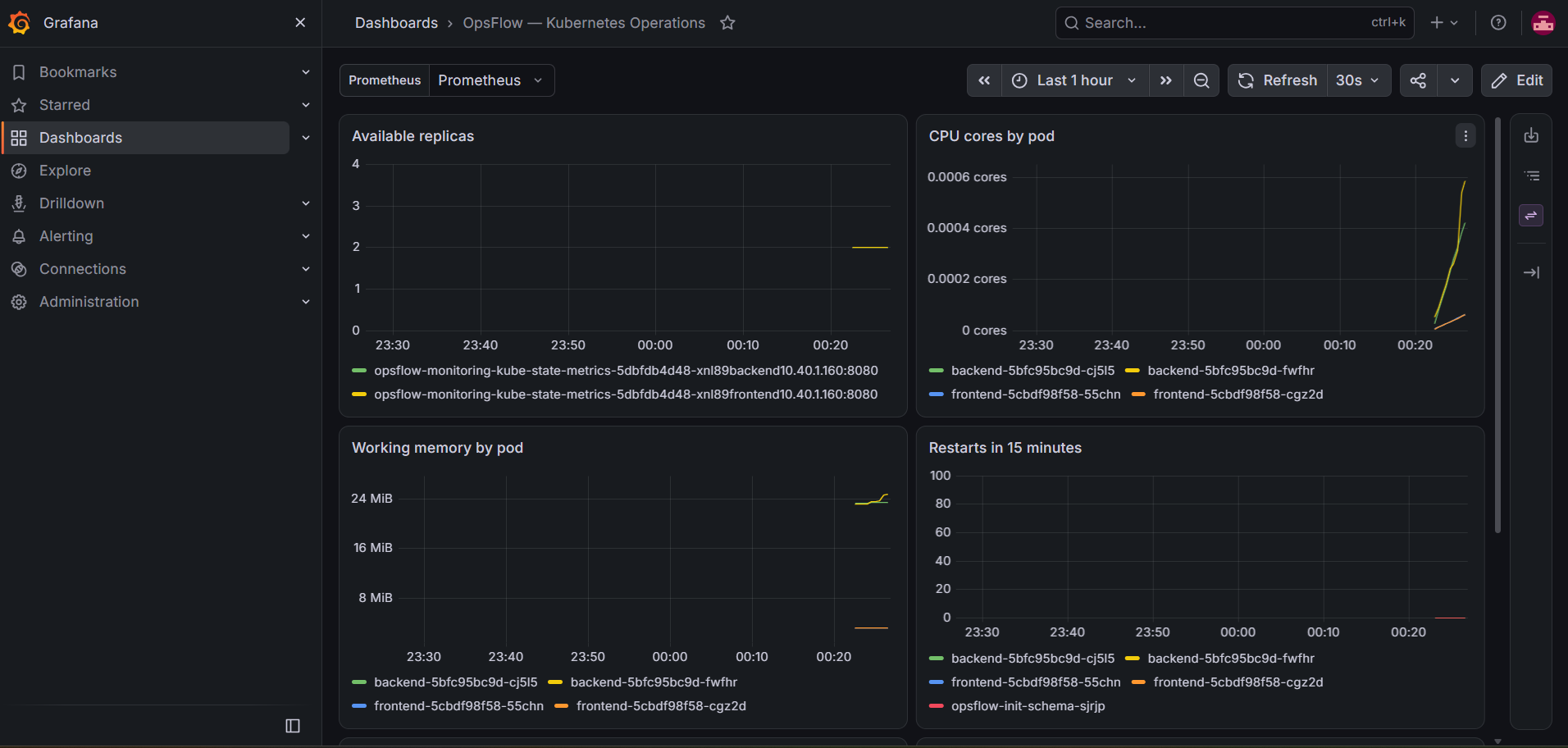
For OpsFlow, Grafana provided a visual view of the Kubernetes environment.
Instead of checking CPU and memory usage through individual commands, I could inspect metrics over time.
Useful dashboard information includes:
Worker node CPU usage
Node memory utilization
Pod CPU and memory usage
Container restarts
Kubernetes workload status
Cluster resource utilization
The monitoring flow is:
Kubernetes Metrics
        |
        v
     Prometheus
        |
        v
      Grafana
        |
        v
     Dashboards
This helped me understand how the cluster behaved while workloads were running.
Why dashboards matter
A dashboard doesn't automatically solve problems.
But it can make patterns easier to identify.
For example, increasing memory usage may indicate a growing workload or a possible memory leak.
Repeated container restarts may indicate an application or resource problem.
The important part is understanding what the metrics mean rather than simply creating dashboards.
8. Verifying the Monitoring Stack
After deploying the monitoring components, I checked whether the pods were running.
For example:
kubectl get pods -A
To inspect Helm releases:
helm list -A
To inspect services:
kubectl get svc -A
These commands helped identify the monitoring resources and their namespaces.
For local testing, port forwarding can be used to access internal monitoring services.
For example:
kubectl port-forward \
  -n <monitoring-namespace> \
  svc/<grafana-service> \
  3000:80
Grafana can then be accessed locally through:
http://localhost:3000
The actual Service name and port depend on the installed chart.
For a production environment, monitoring dashboards should be protected with appropriate authentication and network access controls.
They shouldn't be exposed publicly without proper security.
9. Understanding Basic Prometheus Queries
Prometheus uses PromQL to query metrics.
One useful example is checking container restart counts:
kube_pod_container_status_restarts_total
This metric is commonly exposed by kube-state-metrics.
It helps identify containers that have restarted.
Another useful metric is:
container_memory_working_set_bytes
This provides information about container memory usage when the appropriate container metrics are available.
For CPU usage, a common query is:
sum(
  rate(container_cpu_usage_seconds_total{
    container!="",
    container!="POD"
  }[5m])
) by (namespace, pod)
This estimates CPU usage in cores over a five-minute window, grouped by namespace and pod.
The exact metrics available depend on the Prometheus scrape configuration.
For OpsFlow, the goal was to become comfortable using metrics to investigate Kubernetes behavior instead of relying only on pod status.
10. Adding Security to the DevOps Workflow
Observability was one part of this stage.
The other important area was security.
Throughout OpsFlow, I introduced security considerations across different layers.
These included:
IAM permissions
Private networking
Database access restrictions
Container image scanning
Kubernetes workload configuration
CI/CD access control
Secure handling of application credentials
Security isn't a single tool or pipeline stage.
It needs to be considered across the infrastructure and deployment workflow.
Container image security
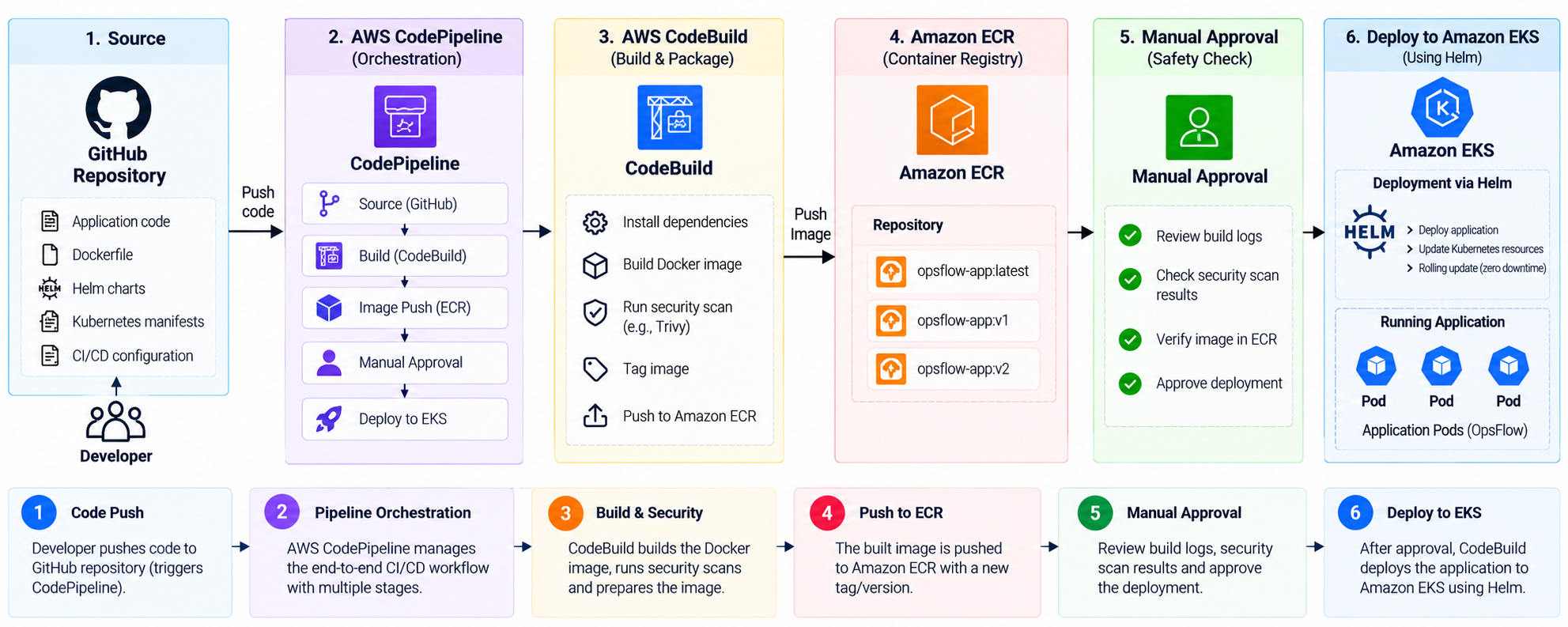
In the CI/CD stage, container images were checked for vulnerabilities before deployment.
A scanning tool such as Trivy can be used for this purpose.
Example:
trivy image \
  --severity HIGH,CRITICAL \
  --exit-code 1 \
  YOUR_IMAGE_URI
The purpose is to identify known vulnerabilities before promoting an image.
However, vulnerability scanning alone doesn't make an image secure.
The base image, application dependencies, runtime permissions, and configuration also matter.
Kubernetes workload security
Kubernetes provides security controls that can limit what application containers are allowed to do.
For example, a container security context can be configured to avoid unnecessary privileges.
securityContext:
  allowPrivilegeEscalation: false
  capabilities:
    drop:
      - ALL
This example prevents privilege escalation and removes Linux capabilities from the container.
Other settings, such as running as a non-root user, using a read-only root filesystem, and restricting filesystem access, can provide additional protection where supported by the application.
These settings should be tested because not every application can run with the same restrictions.
IAM and least privilege
AWS components should use IAM roles with permissions limited to their responsibilities.
For example, the CI/CD build role shouldn't automatically receive unrestricted access to the Kubernetes cluster.
Similarly, application pods shouldn't receive broad AWS permissions unless those permissions are required.
This reduces the impact of a compromised workload or pipeline component.
11. Troubleshooting Monitoring and Logging Issues
Monitoring systems also need troubleshooting.
A dashboard showing no data doesn't always mean the application is down.
The problem could be in the metrics collection or visualization path.
Fluent Bit logs not appearing in CloudWatch
Possible causes include:
Missing CloudWatch permissions
Incorrect log group configuration
Fluent Bit configuration errors
AWS endpoint connectivity problems
Log collection path issues
I would start by checking the Fluent Bit pod logs.
kubectl get pods -A | grep fluent-bit
Then inspect the relevant collector logs.
Prometheus targets are down
Possible causes include:
Incorrect scrape configuration
Unreachable metrics endpoints
Missing exporters
Service discovery problems
Network restrictions
Prometheus target status can help identify which metrics endpoints are failing.
Grafana dashboard shows no data
Possible causes include:
Incorrect Prometheus data source
Prometheus not collecting the required metrics
Dashboard queries referencing unavailable metrics
Incorrect time range
Label mismatches
I would first verify whether Prometheus itself contains the required metrics.
If Prometheus has the data but Grafana doesn't display it, the investigation should focus on the data source and dashboard queries.
Monitoring pods are unhealthy
Useful commands include:
kubectl get pods -A
kubectl describe pod <pod-name> -n <namespace>
kubectl logs <pod-name> -n <namespace>
This helps identify scheduling failures, resource limits, configuration problems, and application startup errors.
12. Cost and Operational Considerations
Monitoring and logging also introduce infrastructure costs.
For OpsFlow, the main considerations included:
CloudWatch Logs: Charges can depend on log ingestion, storage, and queries.
Prometheus: Requires CPU, memory, and storage resources for metrics collection and retention.
Grafana: Requires compute resources when self-hosted inside Kubernetes.
EKS worker nodes: Monitoring components consume resources alongside the application workloads.
For a learning environment, keeping log retention and metrics storage under control is important.
Collecting unnecessary logs or retaining high-cardinality metrics for long periods can increase cost.
For production environments, monitoring retention and capacity should be planned based on operational requirements.
13. What I Learned from This Phase
This stage changed how I thought about Kubernetes operations.
Running pods doesn't mean the application is healthy
Pod status is useful, but it doesn't provide a complete picture of application behavior.
Logs and metrics answer different questions
Logs help explain individual events.
Metrics help identify trends and resource usage.
Both are needed for effective troubleshooting.
Monitoring systems have their own dependencies
Prometheus, Grafana, and Fluent Bit also require configuration, permissions, networking, and resources.
Security needs to be part of the complete workflow
Infrastructure security, container security, IAM, and deployment permissions all contribute to the overall security of the platform.
Observability improves troubleshooting
Instead of guessing why an application is slow or unstable, I can use logs and metrics to narrow down the possible causes.
14. What's Next?
At this stage, OpsFlow had a more complete operational setup.
The major milestones were:
Centralized logging using Fluent Bit
Application logs available in CloudWatch
Kubernetes metrics collected through Prometheus
Grafana dashboards for cluster visibility
Container image security checks
IAM and workload security considerations
Basic monitoring and troubleshooting workflows
The final part of the series focuses on cost optimization and the overall project experience.
In Part 10 — AWS Cost Optimization and Lessons Learned from Building OpsFlow, I'll cover the infrastructure cost considerations, decisions made to reduce unnecessary spending, cleanup practices, and the most important technical lessons from building the complete platform.
This will bring together everything from Terraform infrastructure provisioning to Kubernetes operations, CI/CD, security, and monitoring.
Thanks for reading! I'm documenting OpsFlow as a practical AWS and DevOps project series, sharing the architecture, implementation, troubleshooting, and lessons learned from building an EKS-based platform.
GitHub: Sampaatil
Tags: DevOps AmazonEKS Kubernetes Prometheus Grafana FluentBit CloudWatch DevSecOps AWS