Linux Operations : Shell Scripting & Scaling EBS Storage on EC2
As part of my Linux learning journey, Day 2 focused on two very practical and important areas:
🖥️ Shell Scripting Basics
💾 Scaling Storage on an EC2 Instance (EBS Volume Management)
Both topics are extremely relevant for anyone moving toward DevOps, Cloud, or System Administration roles. Let’s walk through everything step by step.
Part 1: Shell Scripting Basics
What is Shell Scripting?
A shell script is simply a sequence of Linux commands written in a file and executed together to automate a task.
Instead of typing commands manually every time, we can:
Write them in a file
Give executable permission
Run them whenever needed
This is the foundation of automation in Linux.
📌 Important: A script must have executable permission before it can be run.
Example:
chmod +x script.sh
./script.sh
Script Practice Covered
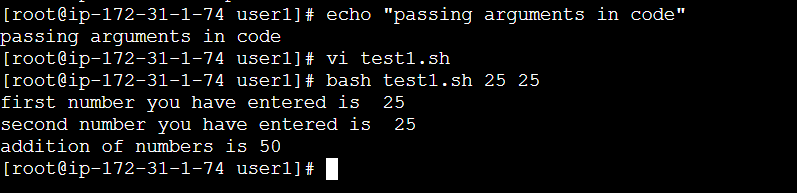
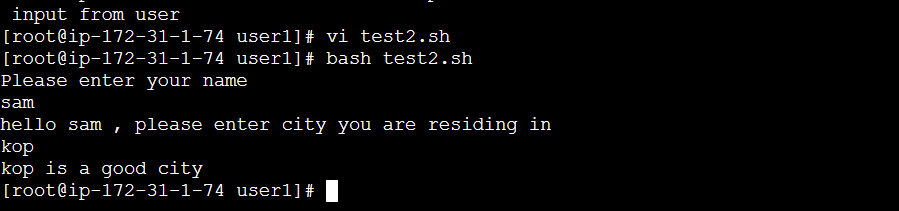
1️⃣ Accepting Input from User
Shell scripts can interact with users by taking input at runtime.
This makes scripts dynamic and more useful in real-world scenarios.
You can use the read command to accept user input.

2️⃣ Conditional Statements (if / if-else)
Conditional logic allows your script to make decisions.
We practiced:
ifif-else
This helps in scenarios like:
Checking if a file exists
Validating user input
Performing actions based on conditions

3️⃣ Loops
Loops allow repetitive execution of commands until a condition is met.
This is powerful when:
Processing multiple files
Running checks continuously
Automating repetitive tasks
Why Shell Scripting Matters
Shell scripting is not just about writing commands. It is about:
Automating repetitive tasks
Reducing human error
Saving time
Managing infrastructure efficiently
For DevOps engineers, this is a must-have skill.
Part 2: Scaling Storage Capacity of an EC2 Instance
Now comes the real-world cloud scenario.
Imagine your EC2 instance is running out of disk space. What do you do?
There are two approaches:
Scale existing EBS volume
Create and attach a new EBS volume
Let’s go step by step.
Option 1: Scaling an Existing EBS Volume
Step 1: Increase Volume Size from AWS Console
First, go to the AWS Console and increase the EBS volume size.
But here’s something important:
Increasing the volume size in AWS does NOT automatically increase the filesystem inside Linux.
The OS still sees the old size until we extend the partition and filesystem.
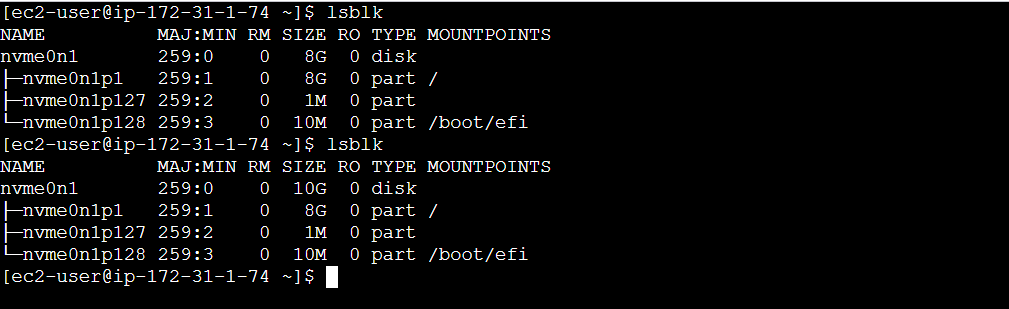
Step 2: Extend the Partition
Use:
sudo growpart /dev/xvda 1
This resizes the partition to match the new EBS size.
Step 3: Extend the Filesystem
Check disk usage:
df -hT
If changes are not visible, extend the filesystem (for XFS):
sudo xfs_growfs -d /
Then verify again:
df -hT
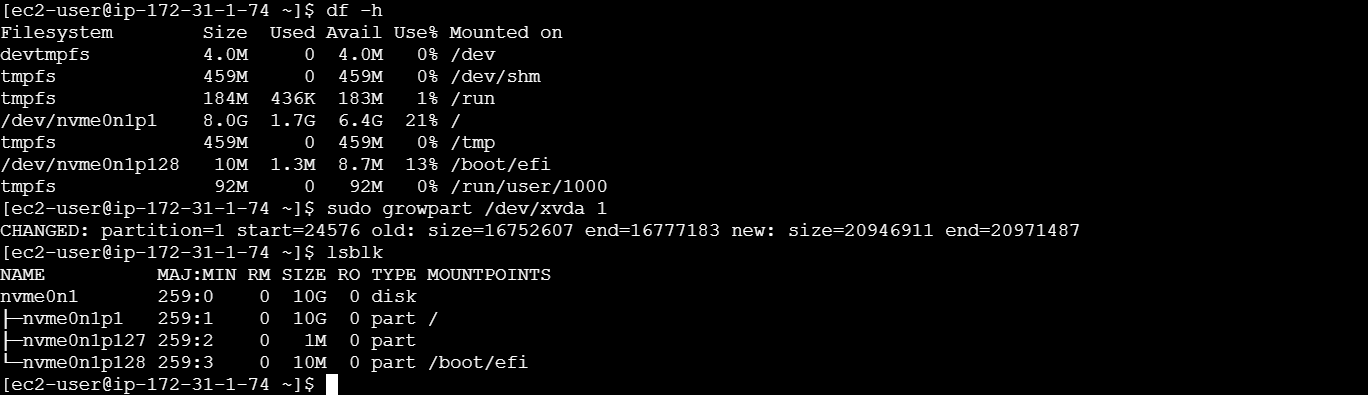
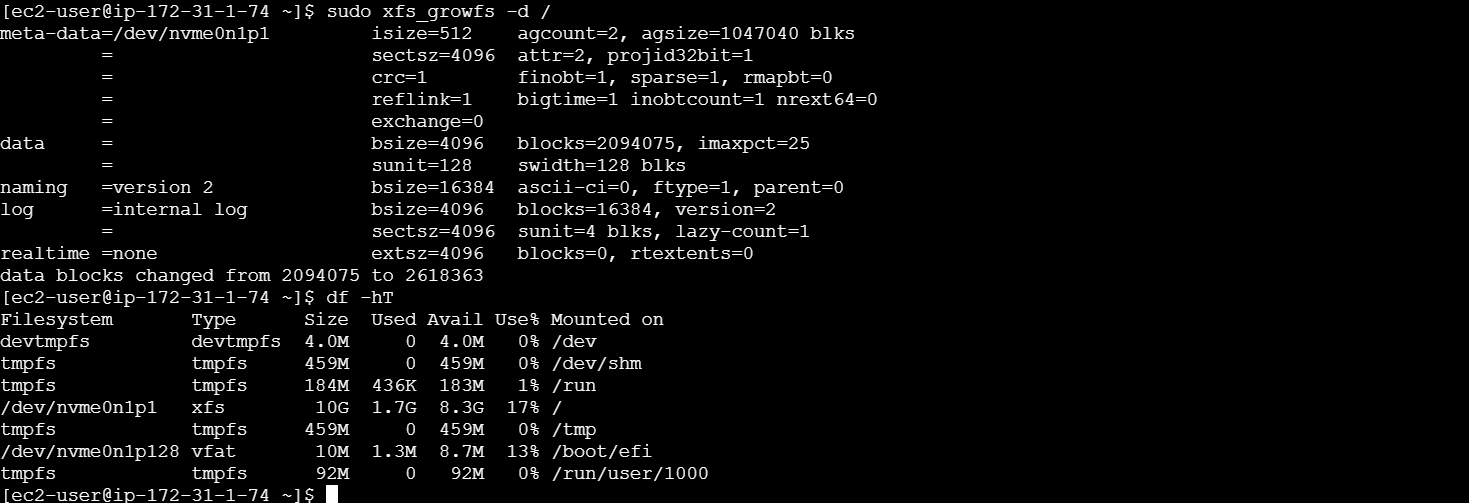
Now your storage expansion is complete.
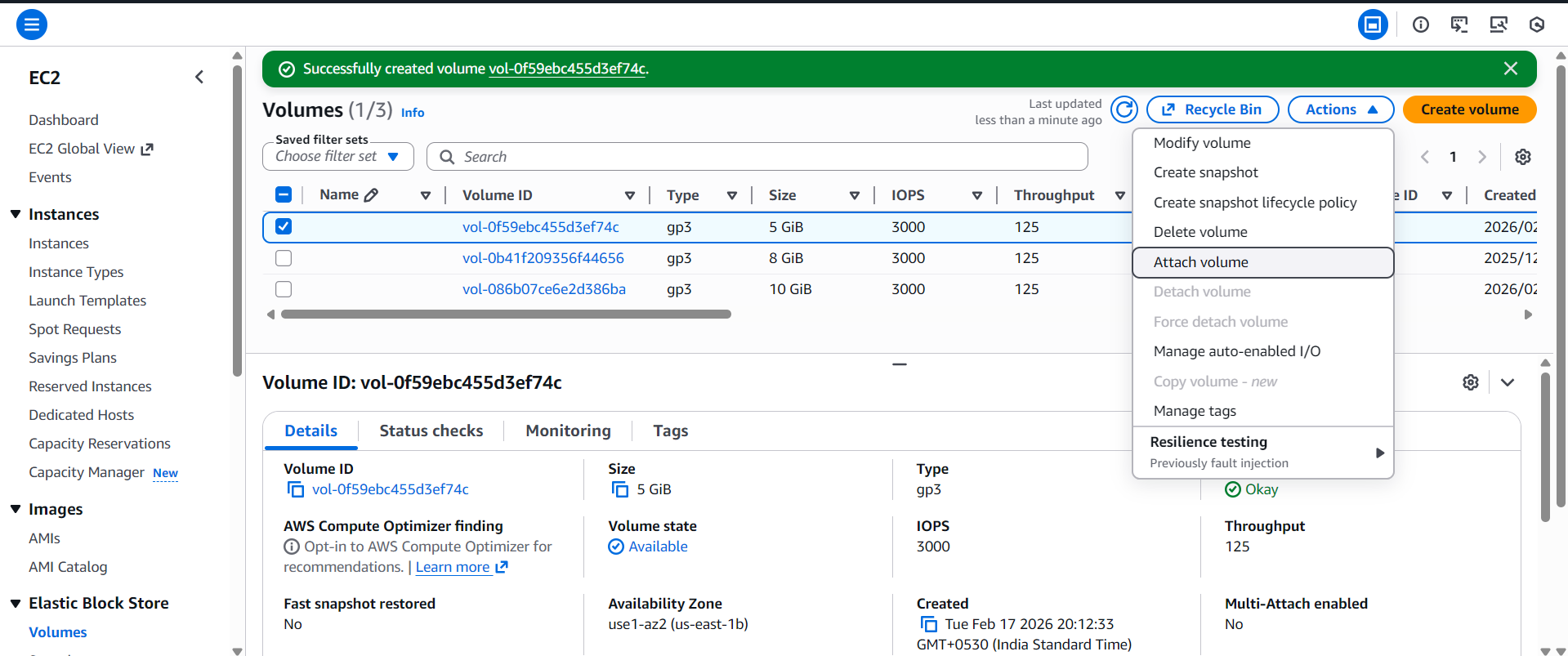
Option 2: Create and Attach a New EBS Volume
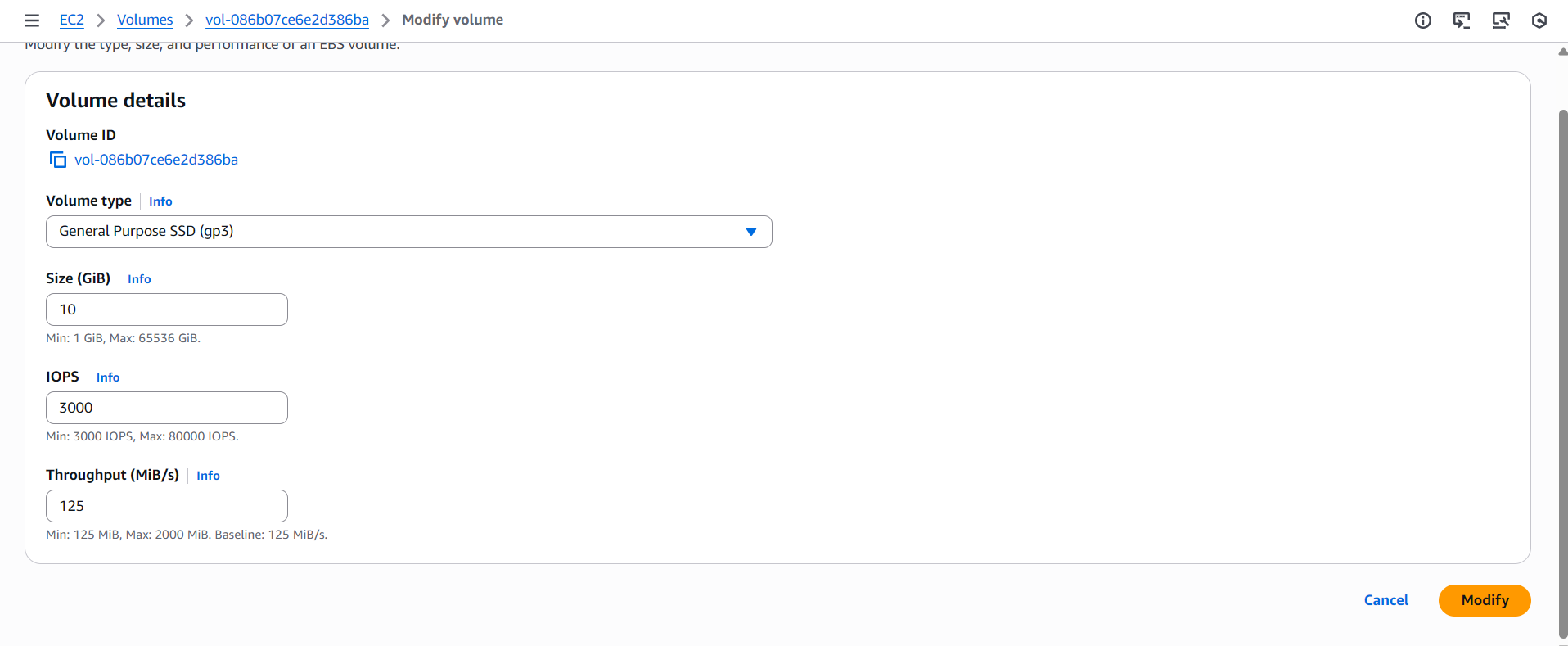
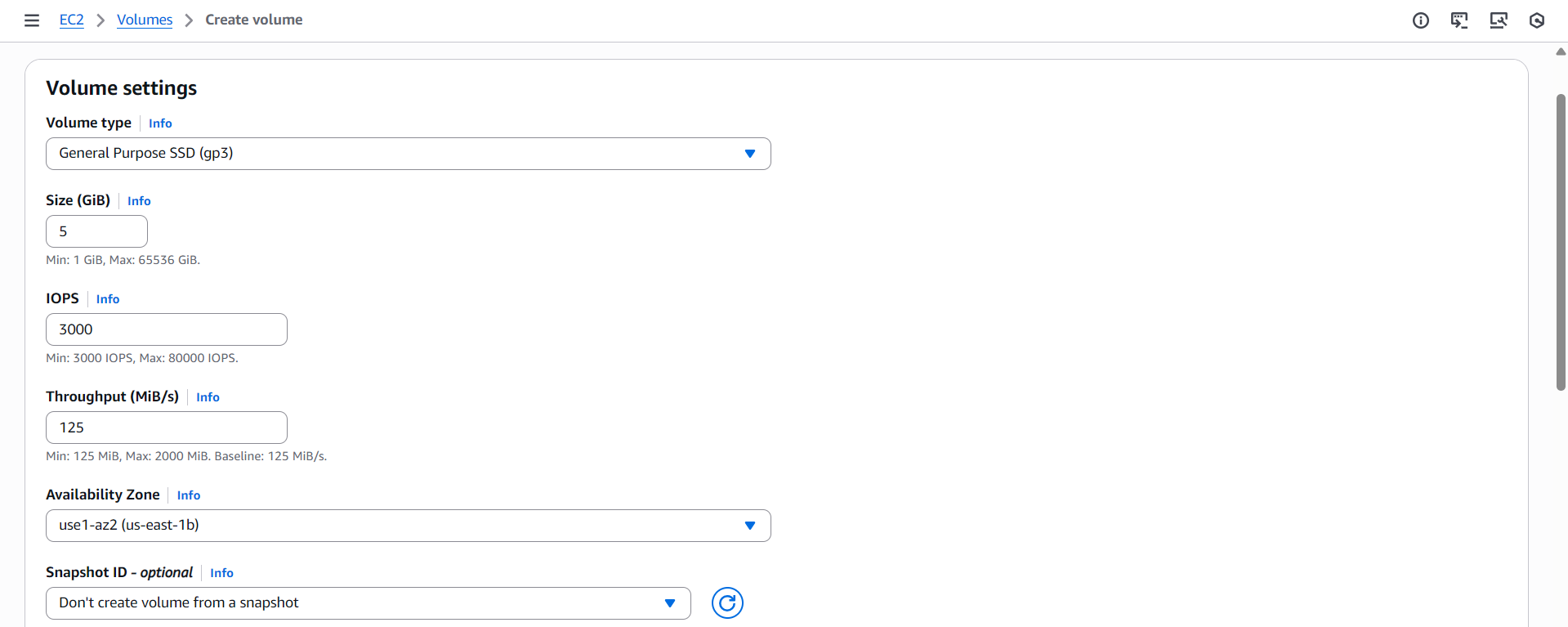
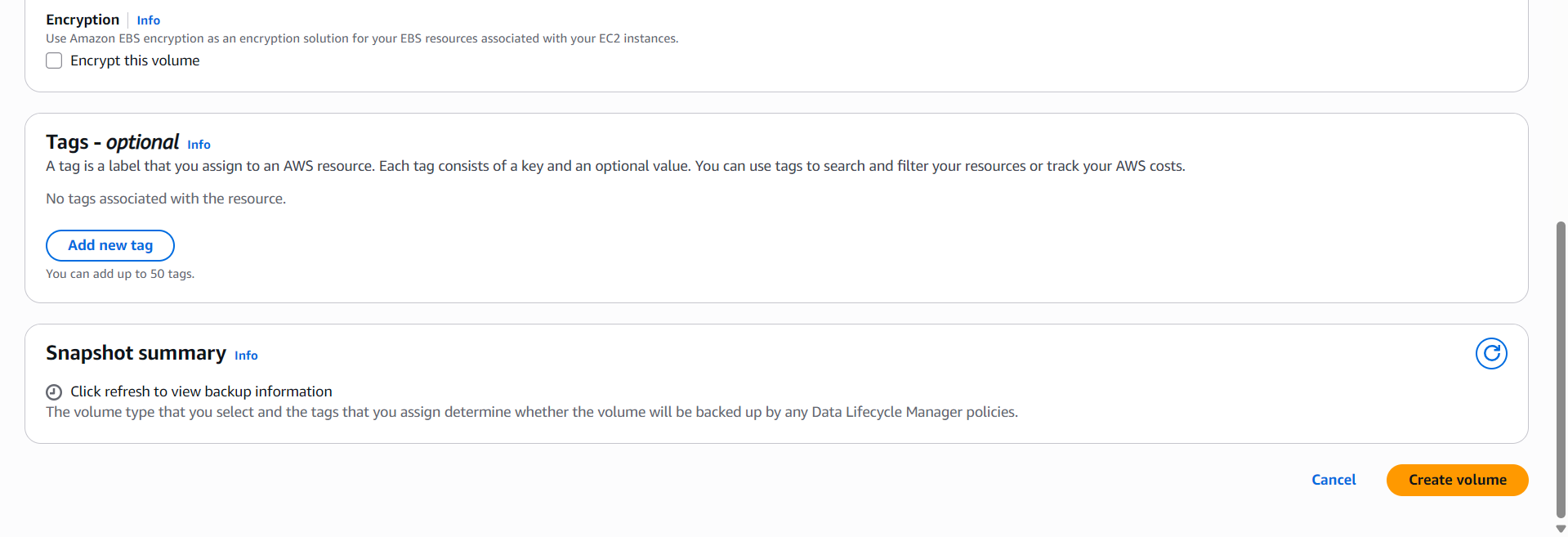
Sometimes instead of resizing, you may want to attach a new volume.
⚠️ Important:
The new EBS volume must be created in the same Availability Zone as the EC2 instance.
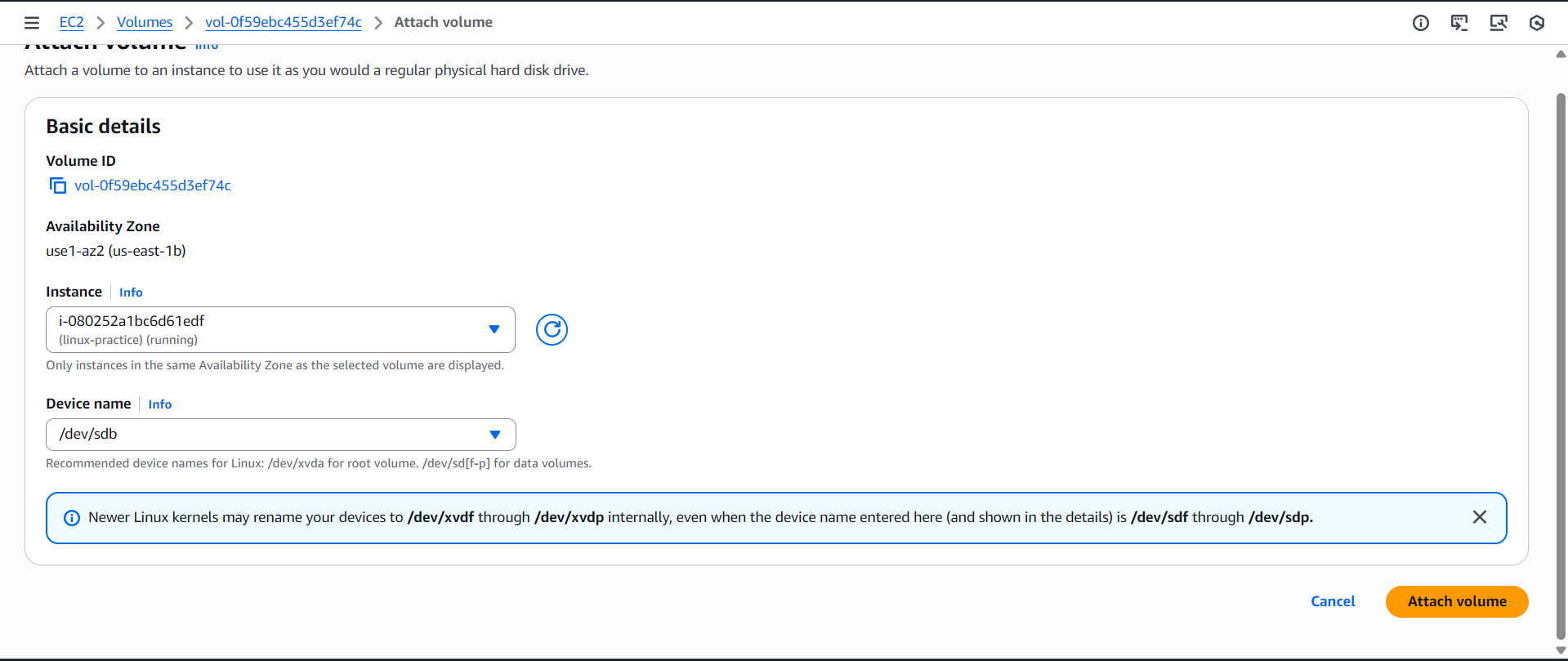
Step 1: Attach Volume & Verify
After attaching the volume, check available disks:
lsblk
You’ll notice the new device (e.g., /dev/xvdf) with no mount point.
Step 2: Check If Filesystem Exists
sudo file -s /dev/xvdf
If output shows
data→ No filesystem exists.If it shows
xfs→ Filesystem already exists.
⚠️ Creating a new filesystem will erase existing data.
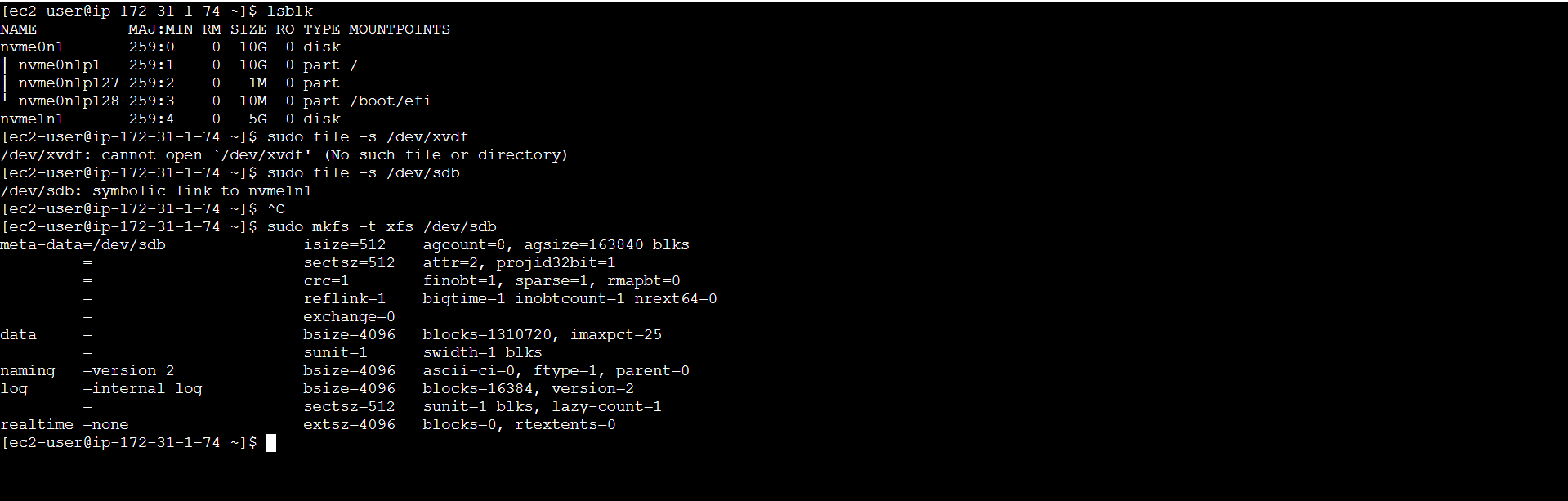
Step 3: Create Filesystem
sudo mkfs -t xfs /dev/xvdf
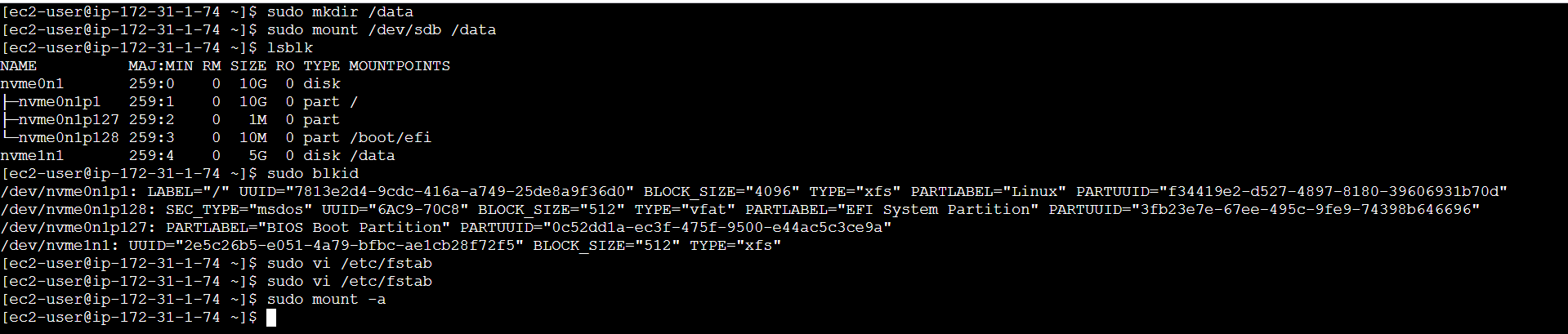
Step 4: Create Mount Directory
sudo mkdir /data
Step 5: Mount the Volume
sudo mount /dev/xvdf /data
Verify:
df -hT
Now the volume is usable.
Making the Mount Persistent (Very Important)
If you reboot the instance now, the mount will disappear.
To make it permanent:
Step 1: Get UUID
sudo blkid
Copy the UUID of the new volume.
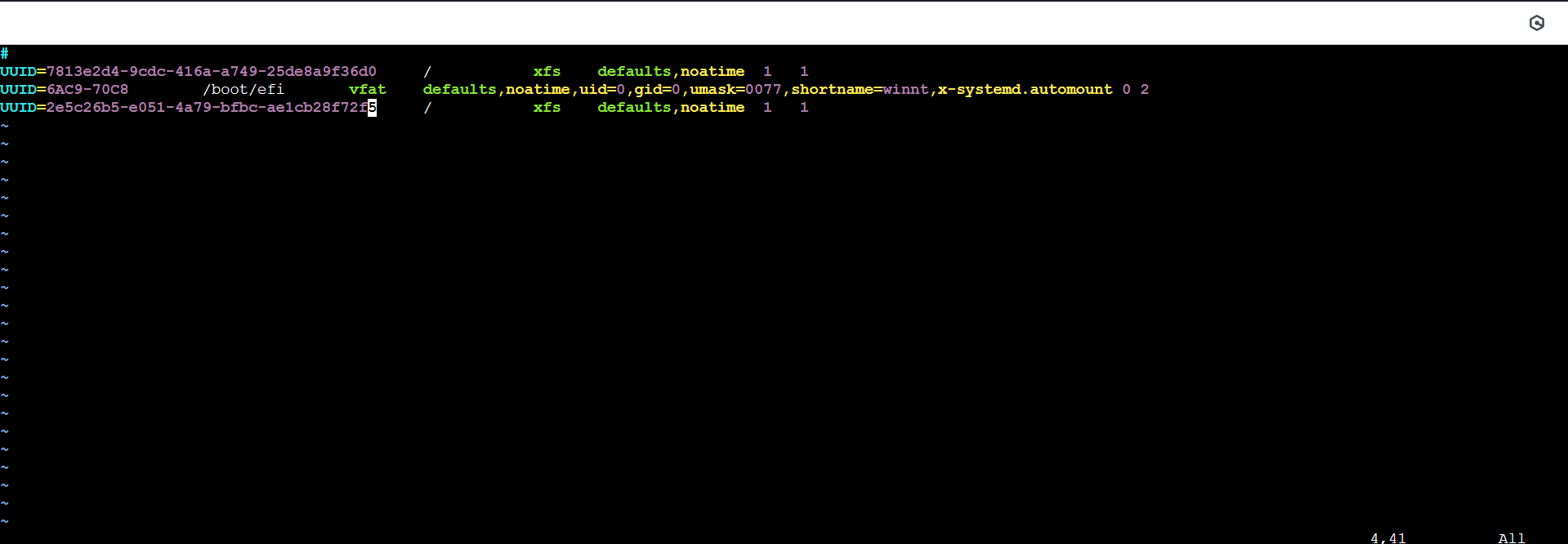
Step 2: Update /etc/fstab
sudo vi /etc/fstab
Add an entry using UUID (recommended because UUID is globally unique).
Step 3: Validate Configuration
sudo mount -a
If no error appears, your configuration is correct.
You can reboot the instance to verify.
Key Learnings from Day 2
✔ Shell scripting is the foundation of automation
✔ Increasing EBS size is a two-step process (cloud + filesystem)
✔ Always verify partition and filesystem
✔ Never create filesystem blindly — it erases data
✔ Use UUID in fstab for reliable mounting
✔ Always test with mount -a before reboot
Final Thoughts
Today’s session was practical and production-oriented.
Understanding:
How storage works internally
How filesystems behave
How mounting works
How automation begins with shell scripting
These are real-world skills that every DevOps or Cloud Engineer must know.
Linux is not just about commands — it’s about understanding how systems actually function.
More hands-on learning coming next 🚀

