Automating EC2 Setup Using AWS Systems Manager (SSM Run Command)

Overview
Manually logging into EC2 instances to install agents and services is not scalable, secure, or production-ready. AWS provides a powerful alternative through AWS Systems Manager, which allows administrators to manage instances without SSH access.
In this blog, we will automate the installation of:
CloudWatch Agent (with configuration)
SSM Agent
HTTP Server (Apache)
Execute everything remotely using SSM Run Command
This approach follows real-world DevOps best practices and is widely used in production environments.
Prerequisites
Before starting, ensure the following:
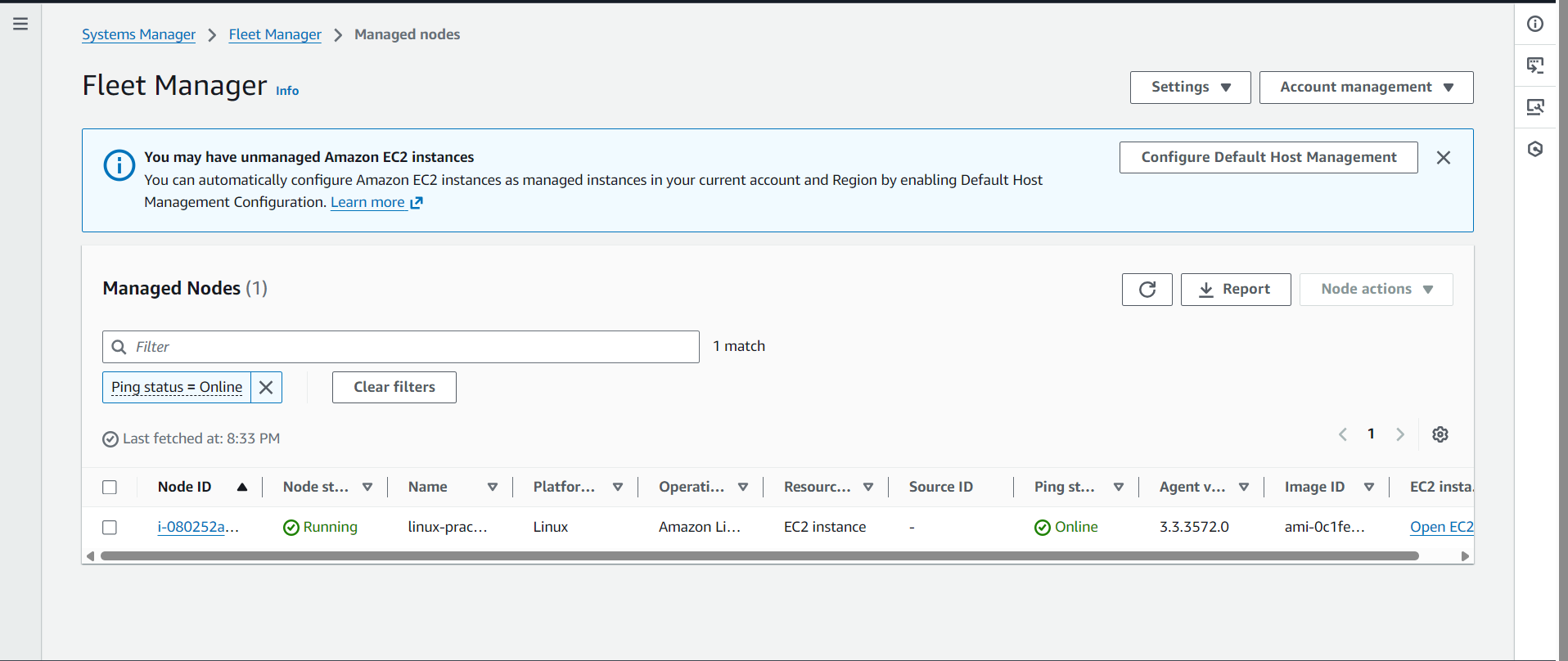
An EC2 instance is running (Amazon Linux 2 or Ubuntu).
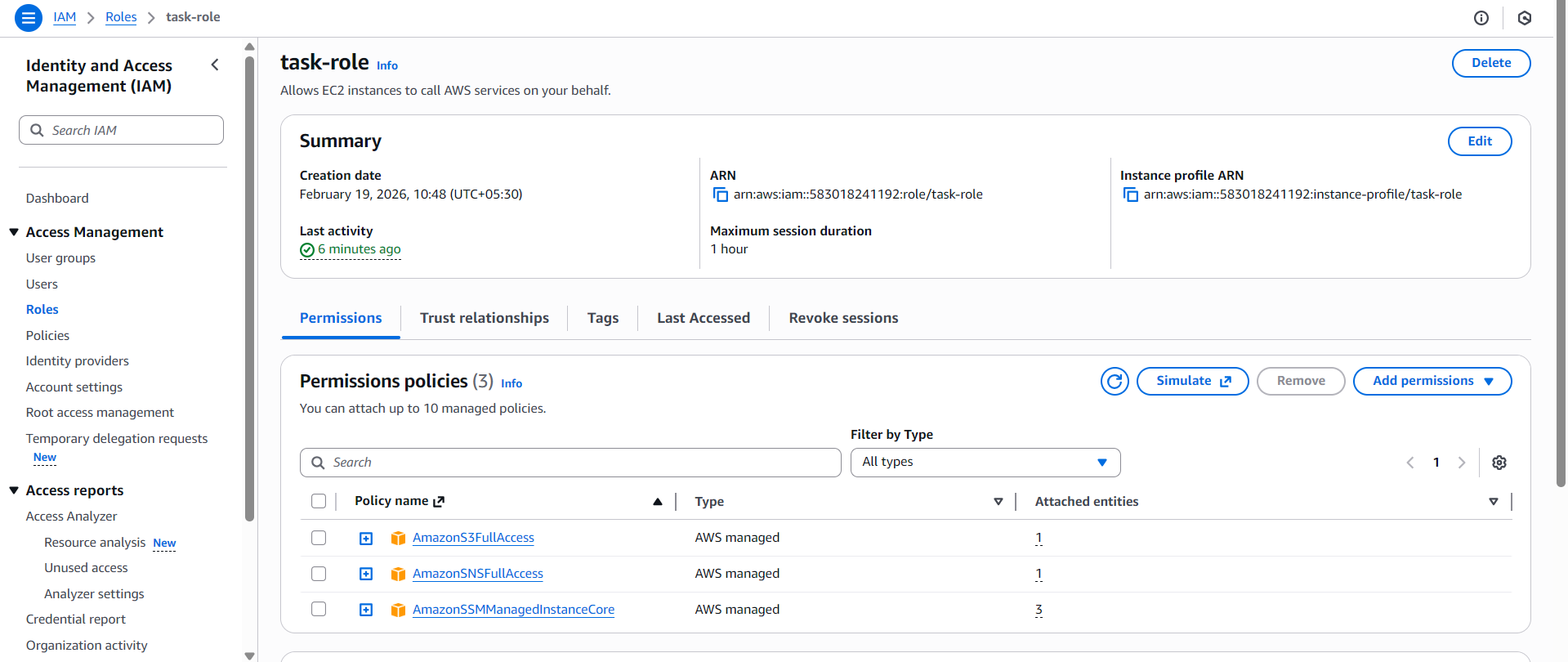
The EC2 instance has an IAM role attached with:
AmazonSSMManagedInstanceCore
The instance has outbound internet access (via NAT Gateway or Internet Gateway).
Why Use SSM Run Command Instead of SSH?
Traditional SSH-based access:
Requires key management
Needs open inbound ports
Does not scale well
With SSM Run Command:
No SSH keys required
No inbound ports needed
Commands are logged and auditable
Works across multiple instances simultaneously
Step 1: Understanding What “Submit Script Using SSM Run Command” Means
Submitting a script using SSM Run Command means:
You send a shell script to EC2 remotely
AWS executes it using the SSM Agent
No direct login to the instance is required
Internally:
SSM Run Command sends instructions
The SSM Agent on EC2 executes them
Output and status are returned to AWS
Step 2: Create the Installation Script
We create a single shell script that installs and configures all required components.
Script: setup_agents.sh
#!/bin/bash

echo "Updating system..."
sudo yum update -y

# Install CloudWatch Agent
echo "Installing CloudWatch Agent..."
sudo yum install amazon-cloudwatch-agent -y

# Create CloudWatch Agent configuration
sudo tee /opt/aws/amazon-cloudwatch-agent/etc/amazon-cloudwatch-agent.json <<EOF
{
  "agent": {
    "metrics_collection_interval": 60,
    "run_as_user": "root"
  },
  "metrics": {
    "append_dimensions": {
      "InstanceId": "\${aws:InstanceId}"
    },
    "metrics_collected": {
      "cpu": {
        "measurement": ["cpu_usage_idle", "cpu_usage_iowait"]
      },
      "mem": {
        "measurement": ["mem_used_percent"]
      }
    }
  }
}
EOF

# Start CloudWatch Agent
sudo /opt/aws/amazon-cloudwatch-agent/bin/amazon-cloudwatch-agent-ctl \
-a fetch-config -m ec2 \
-c file:/opt/aws/amazon-cloudwatch-agent/etc/amazon-cloudwatch-agent.json -s

# Install SSM Agent
echo "Installing SSM Agent..."
sudo yum install amazon-ssm-agent -y
sudo systemctl enable amazon-ssm-agent
sudo systemctl start amazon-ssm-agent

# Install HTTP Server
echo "Installing Apache HTTP Server..."
sudo yum install httpd -y
sudo systemctl enable httpd
sudo systemctl start httpd

echo "Installation completed successfully."
Step 3: Upload Script to Amazon S3 (Optional but Recommended)
Uploading the script to S3 makes it reusable across environments.
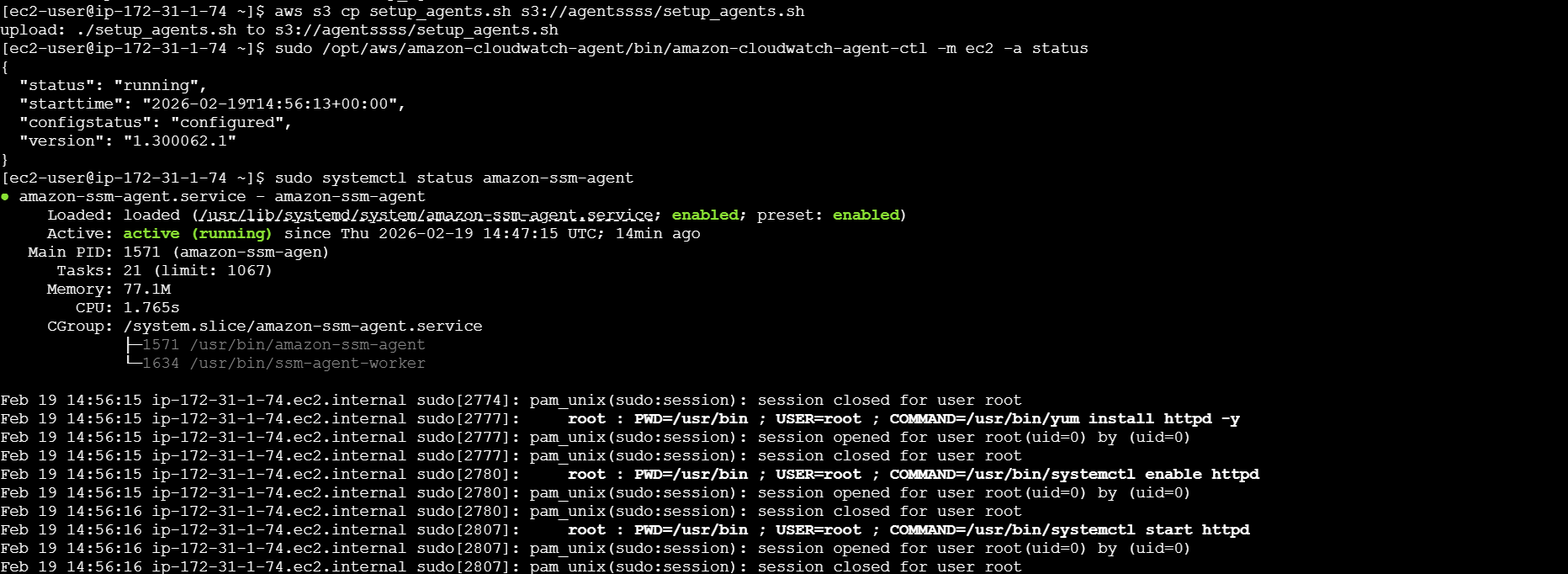
aws s3 cp setup_agents.sh s3://your-bucket-name/setup_agents.sh
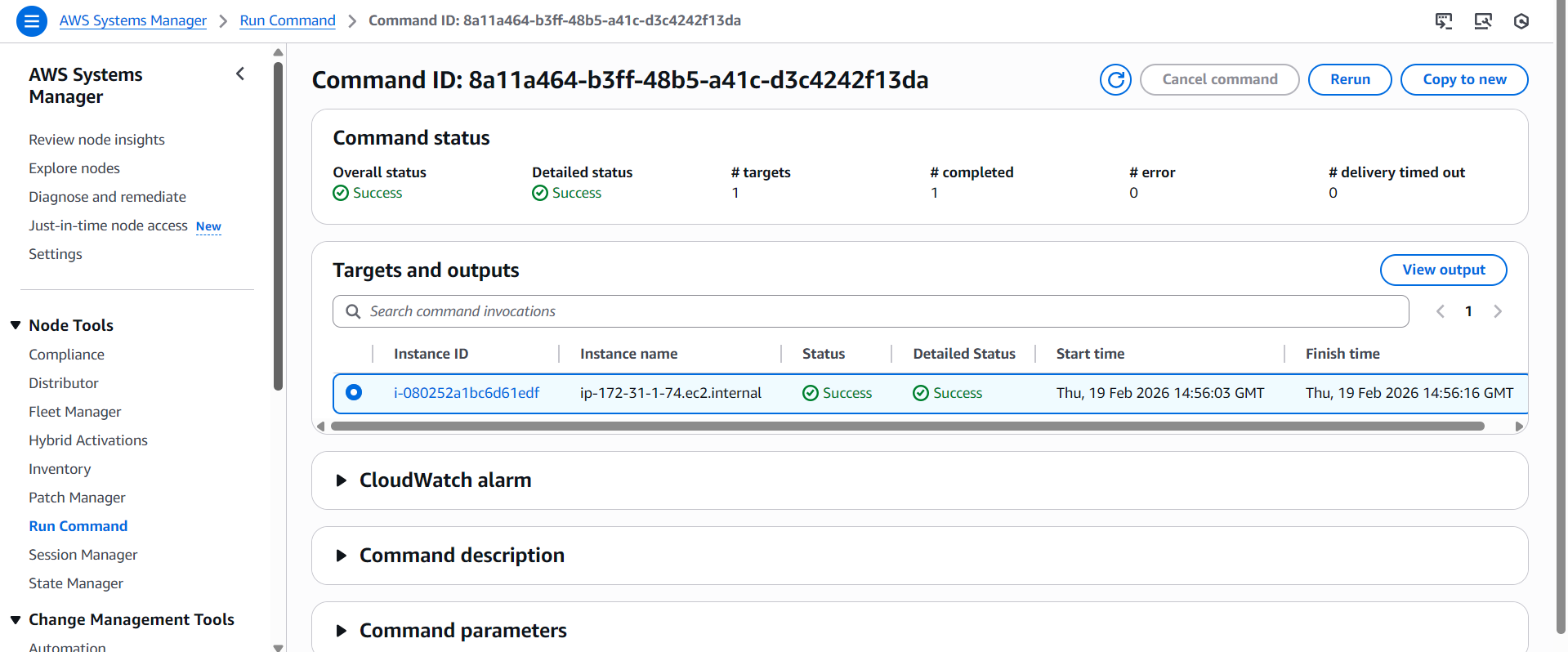
Step 4: Execute Script Using SSM Run Command
Using AWS Console
Open AWS Systems Manager
Navigate to Run Command
Click Run a command
Select document:
AWS-RunShellScriptChoose your EC2 instance
In Commands, enter:
aws s3 cp s3://your-bucket-name/setup_agents.sh /tmp/setup_agents.sh
chmod +x /tmp/setup_agents.sh
/tmp/setup_agents.sh
- Click Run
What Happens Behind the Scenes
SSM securely connects to the EC2 instance
Downloads the script
Executes it with root privileges
Sends logs and status back to AWS
No SSH. No inbound rules. Fully secure.
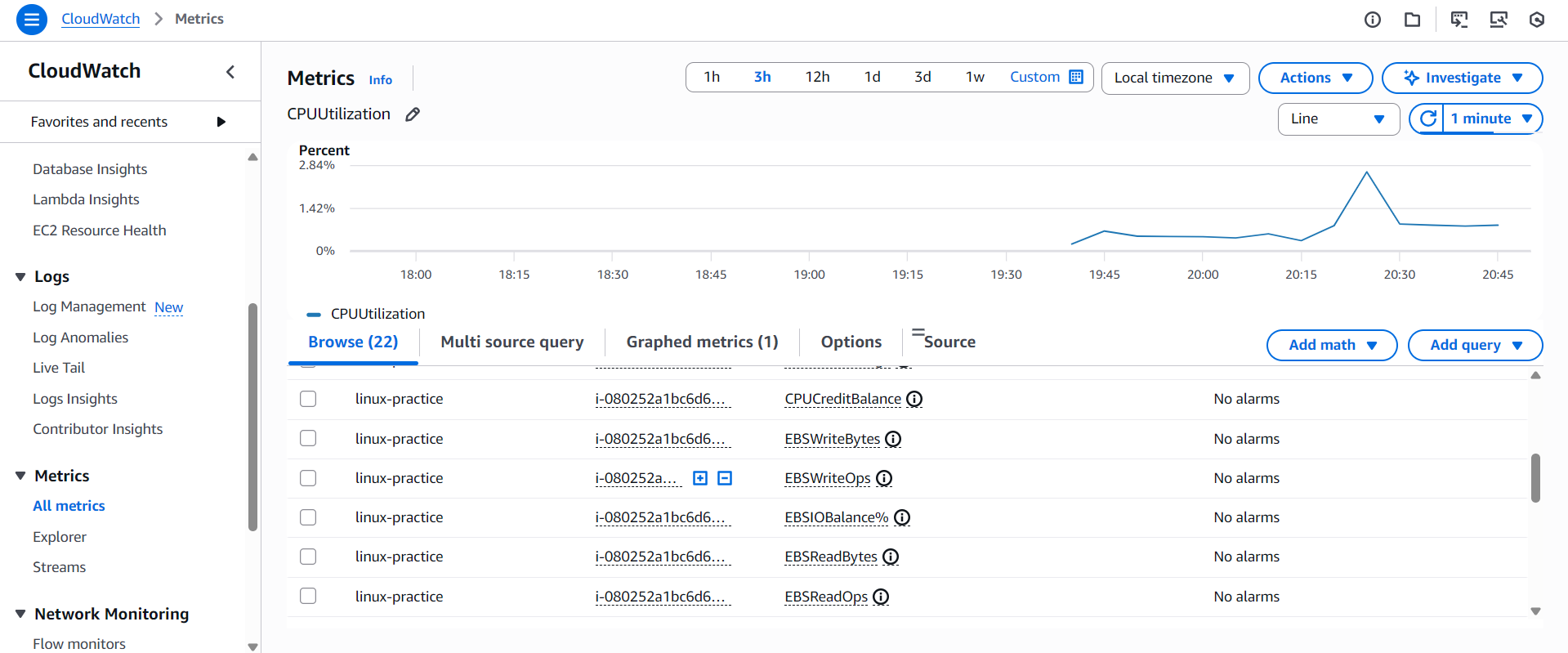
Step 5: Verification
Verify CloudWatch Agent
sudo /opt/aws/amazon-cloudwatch-agent/bin/amazon-cloudwatch-agent-ctl -a status -m ec2
Verify SSM Agent
sudo systemctl status amazon-ssm-agent
Verify HTTP Server
curl http://localhost
Or access the EC2 public IP in a browser.

Key Takeaways
SSM Run Command enables secure, scalable, and auditable instance management
CloudWatch Agent should always use dynamic metadata
Automation scripts should be reusable and environment-agnostic
This setup reflects real production DevOps workflows
Conclusion
By combining SSM Run Command, CloudWatch Agent, and automated scripts, we eliminate manual EC2 management and move toward a true infrastructure automation model.
This approach is widely used in production environments and is highly valued in DevOps and Cloud Engineering roles.

